Proxmox
Proxmox VE ist eine auf Debian basierende Open-Source-Virtualisierungsplattform zum Betrieb von virtuellen Maschinen mit einem Webinterface zur Einrichtung und Steuerung von x86-Virtualisierungen.
- LXC Container Root PW zurücksetzen
- VMID ändern
- Backup Log bereinigen
- Proxmox Backup Server
- Cluster Node entfernen
- Cluster auflösen
- VM- und LXC-Konfiguration aus dem RAM wiederherstellen
- Extend LVM after VM Disk resize
LXC Container Root PW zurücksetzen
To reset the root password in an LXC container, you can use the lxc-attach command to gain access to the container’s shell, where you can then change the password.
- Identify Your Container: First, list all available containers to identify the one you need to access:
lxc-ls --fancy
- Attach to the Container: Use the lxc-attach command followed by the container name to attach to the container’s shell:
lxc-attach -n container_name
- Reset the Root Password: Once attached, use the passwd command to change the root password:
passwd
You’ll be prompted to enter and confirm the new password.
- Exit the Container: Type exit to leave the container shell.
VMID ändern
LVM-Thin
Backups werden bei diesen Schritten nicht umbennent und müssen manuell umbennent werden.
Bevor die nächsten Schritte durchgeführt werden. Muss die VM heruntergefahren werden.
Anzeigen der virtuellen Disken
Mit dem Befehl lvs werden alle LVM Disken angezeigt:
lvsLV VG Attr LSize Pool Origin Data% Meta% Move Log Cpy%Sync Convert
data pve twi-aotz-- 1.71t 13.67 0.54
root pve -wi-ao---- 96.00g
swap pve -wi-ao---- 8.00g
vm-101-disk-0 pve Vwi-aotz-- 4.00m data 14.06
vm-101-disk-1 pve Vwi-aotz-- 100.00g data 75.88
vm-101-disk-2 pve Vwi-aotz-- 4.00m data 1.56
vm-1022-disk-3 pve Vwi-a-tz-- 4.00m data 1.56
vm-1030-disk-0 pve Vwi-aotz-- 4.00m data 14.06
vm-1030-disk-1 pve Vwi-aotz-- 32.00g data 100.00
vm-1031-disk-0 pve Vwi-aotz-- 4.00m data 14.06
vm-1031-disk-1 pve Vwi-aotz-- 32.00g data 100.00
vm-1040-disk-0 pve Vwi-aotz-- 4.00m data 14.06
vm-1040-disk-1 pve Vwi-aotz-- 100.00g data 100.00 Umbennen einer Disk
Mit dem Befehl lvrename kann die Disk unbennt werden.
lvrename pve/vm-1022-disk-3 pve/vm-1040-disk-3VM Konfiguration Datei anpassen
Diese Schritte können auch mit einem GUI durchgeführt werden. Bspw. WinSCP
Anschliessend müssen nun die IDs der Disken in der [vmid].conf anngepasst werden, diese befindet sich im Pfad /etc/pve/nodes/host/qemu-server.
cd /etc/pve/nodes/epyc/qemu-server
ls
nano 1022.confAlle Disk Einträge müssen dann angepasst werden in unserem Beispiel sind es folgende:
efidisk0: local-lvm:vm-1040-disk-0,efitype=4m,format=raw,size=528K
scsi0: local-lvm:vm-1040-disk-1,cache=writeback,format=raw,iothread=1,size=100G,ssd=1
WinSCP
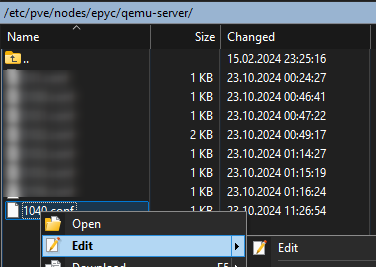
Konfigurationsdatei umbennen
Zum Schluss muss noch die Konfigurationsdatei selbst mit der auf die neue ID umbennent werden:
mv 1022.conf 1040.confZFS
ZFS:
Hier heißt der Befehl zfs list. Der Name der VM sähe wahrscheinlich so in der Art aus:
NAME                            USED  AVAIL  REFER  MOUNTPOINT
rpool/data/vm-100-disk-0       56K   736G    56K  -
Und lässt sich mit zfs rename umbenennnen:
zfs rename rpool/data/vm-101-disk-0 rpool/data/vm-1001-disk-0Backup Log bereinigen
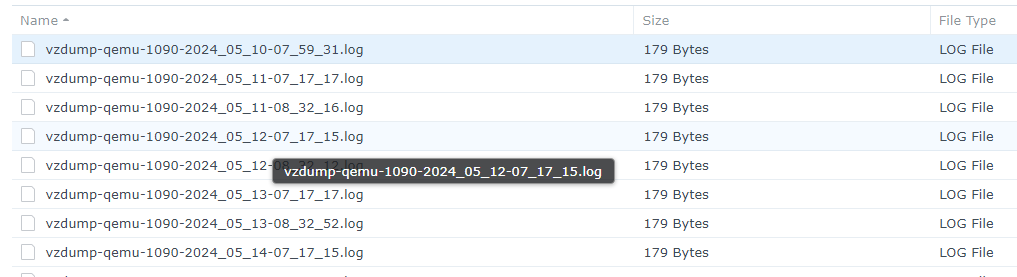
https://forum.proxmox.com/threads/cleaning-up-log-files-from-old-backups.22929/
Proxmox Backup Server
How To: Setup Synology NFS for Proxmox Backup Server Datastore
Cluster Node entfernen
Cluster auflösen
VM- und LXC-Konfiguration aus dem RAM wiederherstellen
Extend LVM after VM Disk resize

growpart /dev/sda 2 (adjust device), pvresize /dev/sda2, and lvresize -l +100%FREE /dev/mapper/vg-lv.
- Resize Disk in Proxmox: Go to the VM's Hardware tab, select the hard disk, click Resize, and add the desired amount.
- Scan for New Space (Inside VM): The VM might not see the space immediately. Rescan the SCSI bus:
bash
echo 1 > /sys/class/block/sda/device/rescan # Replace sda with your disk identifier found via lsblk - Expand Partition (If needed): Use
growpartto expand the partition containing the LVM PV. For example, if LVM is on/dev/sda2:bash
Ifgrowpart /dev/sda 2growpartis not installed, useapt install cloud-utils-growpartoryum install cloud-utils-growpart. - Resize Physical Volume (PV): Tell LVM the partition is larger:
bash
pvresize /dev/sda2 - Extend Logical Volume (LV): Extend the LVM to use all new free space:
bash
lvextend -l +100%FREE /dev/mapper/vgname-lvname # Use 'lvs' to find your correct volume group/logical volume name - Resize Filesystem: Update the filesystem to use the new space.
- For ext4:
resize2fs /dev/mapper/vgname-lvname - For XFS:
xfs_growfs /
- For ext4: